
Timezones
International travel is the world’s messiest game of clocks. The trip starts at 9am. But 9am where? Where you’re leaving from, or where you’re landing? littledots has an opinion about that, and once you understand it, the app stops surprising you.
Your own timezone, first
Every account carries a timezone. By default, it’s whatever timezone your phone or browser thinks you’re in. That shows up in settings under Timezone, with a small From device badge so you always know whether it’s detected or you’ve set it yourself.
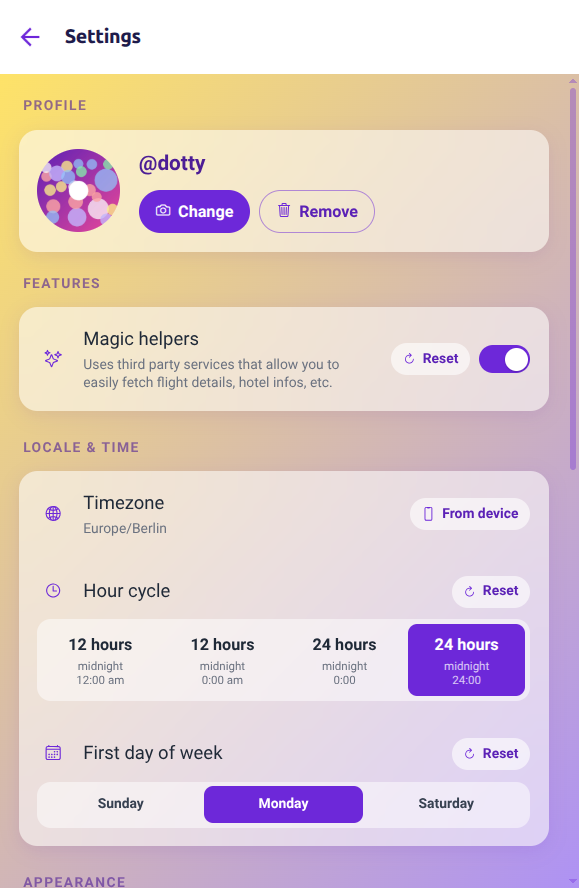
Your own timezone is what tells the app “now”. It’s how your home screen decides what’s coming up next and what’s still weeks away.
If you move, change your timezone in settings. If you move often (a week in Tokyo, then back to Berlin, then somewhere else), let the device decide and littledots follows along.
Every trip has its own timezone
A trip in Lisbon is on Lisbon time. A trip in Kyoto is on Kyoto time. The trip’s timezone is the one where the trip is actually happening, not where you are when you planned it.
Why does this matter? Because when you block out “Monday, 9am” for the pastelaria at the top of the hill, you don’t want that to quietly become 6am or 10am depending on where your phone is when you open the app later. The trip’s own timezone travels with it.
If a trip starts in one timezone and ends in another (a one-way move, a long-haul travel day), the start and end carry their own.
By default a new trip uses your own timezone. Change it in the trip details when the trip is somewhere else.
Every itinerary item can have its own timezone too
Each itinerary item carries its own start and end timezone. That sounds fussy until you remember what a travel day is: a 2pm flight out of New York that lands at 4am in Tokyo. Both times are right, in their own places. Giving start and end their own timezones means the itinerary can show each time where it actually belongs, without anyone doing arithmetic in their head.
When something looks off, check settings
If your home screen’s “what’s next” feels wrong, or a trip you just created shows up on a different day than you expected, the first place to look is your own timezone. Settings, Timezone. If it says From device, your phone’s timezone is driving. If you’ve pinned a specific timezone and since moved, that’s usually the culprit.
Small thing. Big difference.


